
Mic Test - Check Mic Quality Instantly
Check permission, pick a microphone, watch live levels, then record a short sample before your class or call.
Live Input
Grant microphone access to begin the test.
No live signal yet
Device list appears after permission is granted.
Signal strength
—
Waiting for input
Peak / RMS
—
Live amplitude
Voice detection
—
Speak to trigger
Background noise
—
Noise floor
Clipping
—
Peaks near 0 dBFS
Mute detection
—
Silence watchdog
Audio device info
- Device
- —
- Device ID
- —
- Sample rate
- —
- Channels
- —
- Echo cancellation
- —
- Noise suppression
- —
- Auto gain
- —
- Latency
- —
Live class audio check
Not runSpeak in a normal teaching voice for five seconds. We will score level, voice presence, noise, and clipping for a live class.
- Speaking level
- Voice presence
- Background noise
- No clipping
- Not muted
Test result summary
Overall microphone quality from live signal, noise, clipping, and device health.
Start the mic test to generate a score.
- Permission, device, waveform, and meters will populate after you start.
Check Your Microphone Before You Start
Small audio problems can interrupt an otherwise productive call, class, stream, or recording. A quick mic test gives you a better idea of whether your input is active and ready.
Mictestly runs in your browser and helps you review microphone detection, input activity, signal quality, and common access issues.
Everything You Need For Better Audio
Use practical checks to understand what your microphone is doing before audio matters.
Microphone Detection
See whether your browser can recognize an available microphone.
Input Level Check
Review the strength and activity of your incoming audio signal.
Audio Signal Monitoring
Watch signal movement while speaking into your microphone.
Volume Check
Identify input that may be too quiet for calls or recordings.
Device Detection
Keep track of the input device selected by your browser.
Browser Permission Check
Spot when microphone access needs to be allowed or reviewed.
Input Activity
Confirm that your microphone responds when you speak.
Audio Troubleshooting
Use clear signals to narrow down common microphone issues.
How It Works
Run a quick check and make adjustments while everything is still under your control.
Allow Microphone Access
Give your browser permission to use the selected input.
Start The Mic Test
Begin the check and speak naturally for a moment.
Check Your Audio Signal
Review activity, level, and signal quality indicators.
Fix Issues And Retest
Adjust your setup, then run the test again when needed.
Made For Everyday Audio
Online Meetings
Check your mic before joining an important video call.
Remote Work
Make sure your voice is ready for daily team conversations.
Online Classes
Confirm clear input before lessons, presentations, or exams.
Gaming
Check voice chat input before loading into a match.
Streaming
Review your signal before going live for your audience.
Podcasting
Catch input or permission problems before recording guests.
Video Recording
Verify audio activity before filming your next take.
Content Creation
Keep your voice input consistent across creative projects.
Common Microphone Problems
Use a quick mic test to identify where your audio setup may need attention.
Microphone Not Detected
Your browser may not see an available input.
Action: Check the connection and device selection.No Sound
The input may be muted or inactive.
Action: Check mute controls and permissions.Low Microphone Volume
Your voice signal may be too quiet.
Action: Move closer or raise input level.Wrong Input Device
A different microphone may be selected.
Action: Review your browser input choice.Permission Blocked
Access may have been denied for this site.
Action: Allow microphone access in settings.Distorted Audio
Input may be clipping or over-amplified.
Action: Lower the input level and retest.Intermittent Microphone
The signal may cut in and out.
Action: Check cables, ports, and connections.Browser Access Problems
Browser settings can prevent audio input.
Action: Review site permissions and reload.Works With Modern Browsers
Designed for modern browsers and common devices. Browser permission behavior and available features may vary by device and operating system.
What Users Say
“A quick check before my morning calls helps me avoid the usual last-minute microphone scramble.”
“It made it easy to see that my browser permission was the reason my mic was silent.”
“Simple, fast, and useful when switching between a headset and my built-in mic.”
“I use it before going live to confirm the input is active and the level looks reasonable.”
“It is a handy first step before opening my recording software.”
“The interface gives me a clear answer without making audio setup feel complicated.”
Audio Tips And Guides
Read practical guidance about microphone setup, audio troubleshooting, browser permissions, streaming, recording, online meetings, and audio quality.

Why Is My Microphone Not Working? Easy Fixes for Windows and Mac
A silent microphone can bring a meeting, recording session, online class, or gaming chat to an abrupt stop....
Read More →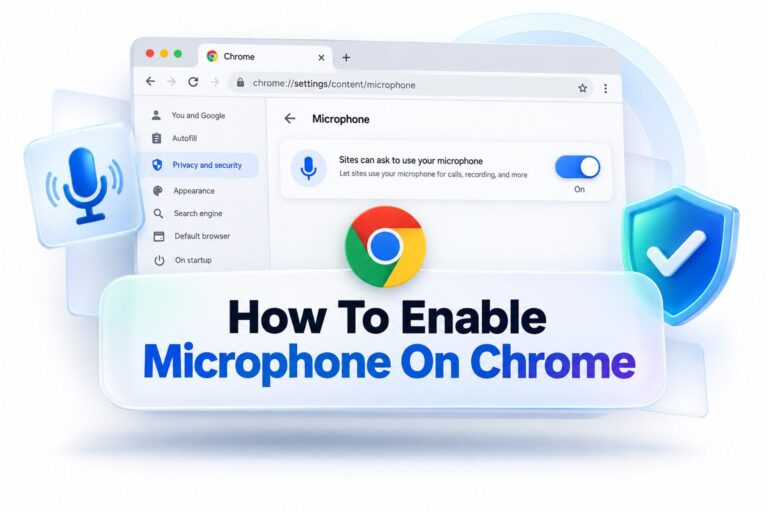
How to Enable Microphone on Chrome: Step-by-Step Guide
A blocked microphone can stop a video meeting before it starts, prevent voice search from working, or leave...
Read More →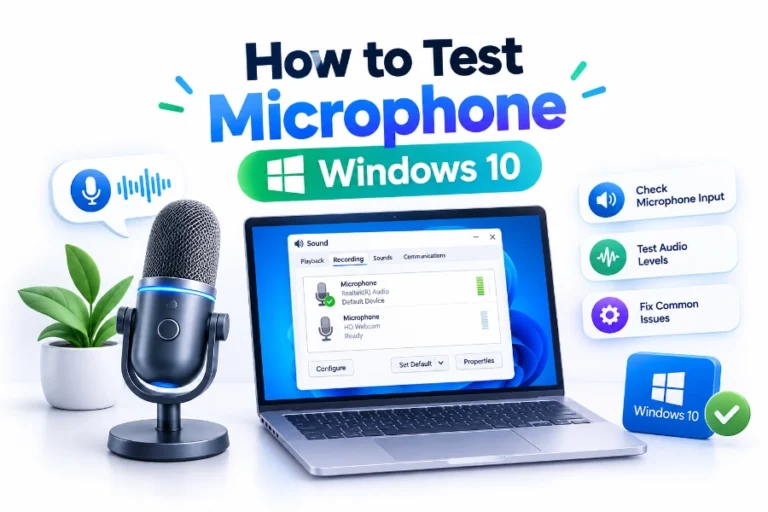
How to Test Your Microphone in Windows 10
A microphone problem can interrupt a video meeting, ruin a recording session, or leave friends unable to hear...
Read More →Questions About Mic Testing
What Is A Mic Test?
A mic test checks whether your microphone is detected and whether it is sending an active audio signal to your browser.
How Do I Test My Microphone?
Open the mic testing tool, allow microphone access, speak naturally, and review the input activity and signal indicators.
Do I Need To Install Software?
No. Mictestly is designed to run in your browser, subject to browser and device permissions.
Why Is My Microphone Not Detected?
Check that the microphone is connected, enabled, selected as the input device, and allowed for the current website.
Why Is My Microphone Volume So Low?
The microphone may be too far away or its input level may be low. Try moving closer and reviewing system input controls.
Can I Test My Mic Before A Video Meeting?
Yes. A quick microphone test can help you check your audio input before joining a meeting.
Does Mictestly Work On Mobile Devices?
It is designed for common mobile devices and modern browsers, though available permissions and behavior can vary.
Why Does My Microphone Sound Distorted?
Distortion can happen when input is too high, the microphone is too close, or the device is clipping the signal.
How Do I Allow Microphone Access In My Browser?
Choose Allow when prompted, or open your browser’s site permissions and enable microphone access for the website.
Can I Retest My Microphone After Making Changes?
Yes. Retesting after changing the device, volume, connection, or permission settings helps confirm the result.
Ready To Test Your Mic?
Check your microphone before meetings, classes, games, streams, recordings, and podcasts.